Configuration
Configuration gives you technical control over how specs are created — the same options drive both the Figma plugin and the CLI, so a component produces the same structured output no matter which one generates it.
Two kinds of value exist, whichever surface you set them on:
- Conventions are facts. Every consumer reading the same library declares the same values, so a wrong value produces incorrect output — undetected glyphs, missed subcomponents, a concept landing on the wrong prop.
- Settings are choices. A different team could set any of them differently and still be correct — a different value produces merely different output.
Declaring a convention is also what enables its processing: a declared glyphs pattern
turns glyph detection on, and an absent block means the library has no such convention.
There is no separate on-switch.
The plugin’s Settings tab exposes the same options as the CLI’s config files, right next to the canvas where you’re generating specs.
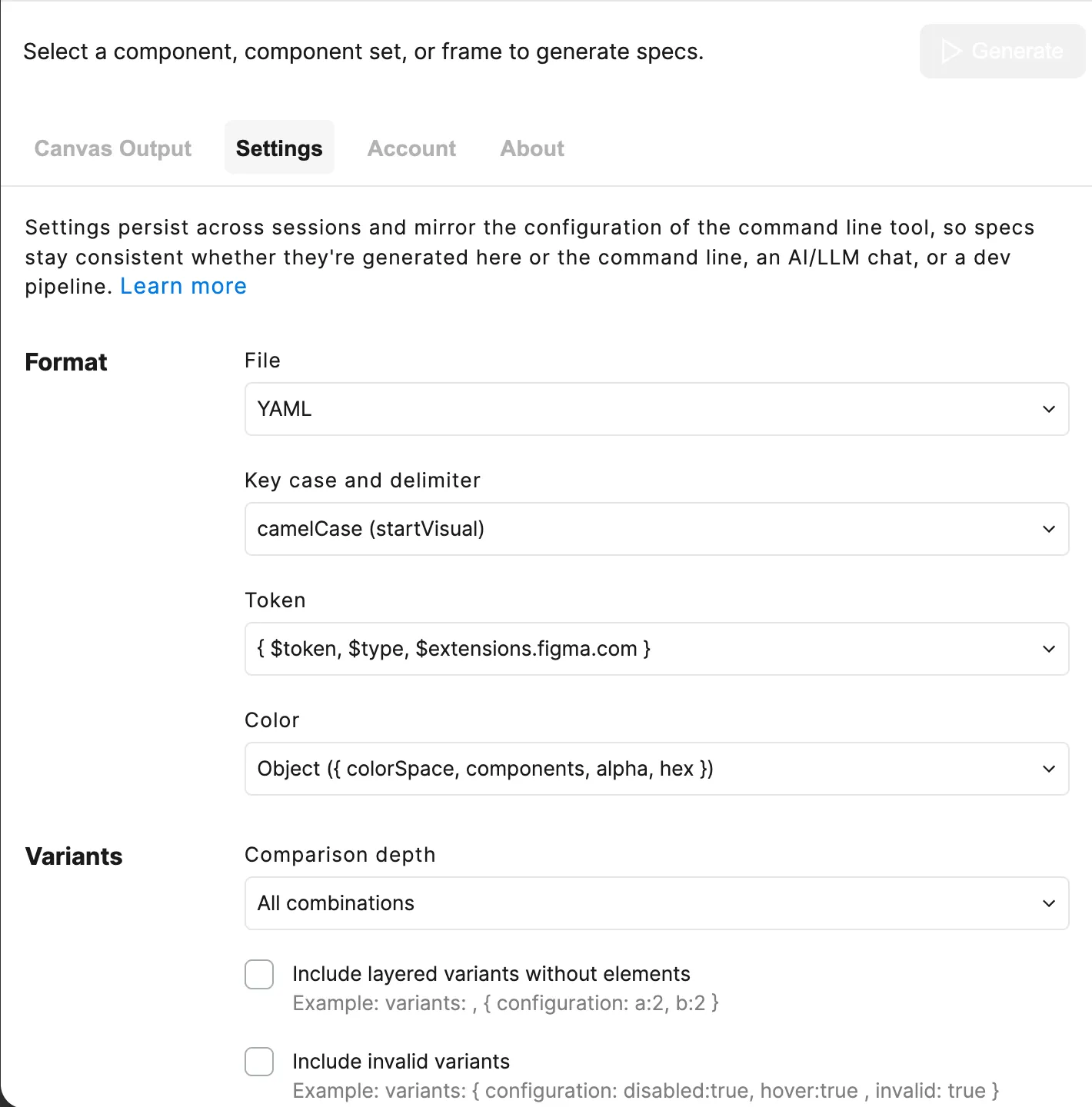
Format
The Format section controls how spec data is serialized once it’s extracted:
- Format — Serializes specs as
YAMLorJSON - Keys — Renames keys, such as
camelCaseorsnake_case - Naming — Declares the convention your Figma file uses, keeping renamed keys reversible
- Tokens — Serializes as forms such as a name string or
{ $token, $type }object - Color — Formats color, such as
#FF6600or{ colorSpace, components }
Variants
The Variants section controls how variant property combinations are compared and included:
- Variant Depth — Compares depths such as
1prop at a time or9999(all combos) - Empty Variants — Includes variants like
{ a:2, b:2 }with no overrides - Invalid Variants — Includes invalid combos, e.g.
disabled:true, hover:true - Invalid Combinations — Summarizes as
invalidPropConfigurations: { disabled:true }
Elements
The Elements section controls which layers are detected as special-purpose content:
- Glyphs — Matches names like
DS Icon Glyph / check - Subcomponents — Matches names like
Card / _ / HeaderwithinNESTEDorPAGE - Collapse Primitive Wrapper — Collapses a wrapper around a lone
textorglyphchild - Default Slot Content — Emits authored defaults as
slotContentExamples - Instance Examples — Detects frames like
{C} ExampleasinstanceExamples - Images — Captures image fills as
backgroundImageor routes them through an image component
Props
The Props section controls how code-only and inferred props are detected:
- Code-Only Props — Detects a layer like
Code only props - Slot Constraints — Merges
anyOf,minChildren,maxChildreninto the slot prop - Infer Number Props — Emits
minRows: 2asNumberPropinstead ofStringProp
Layout
The Layout section controls how element hierarchy is represented:
- Layout — Nests such as
layout:or flattens aselements: { parent, children }
A workspace authors configuration as a config/ directory, one file per question:
config/├── settings.yaml What do I want out of this run?└── conventions/ ├── figma.yaml What is true about this Figma library? ├── figma.primitives.yaml Which component does a raw layer stand for? ├── specs.yaml What do the spec's own props mean? ├── react.yaml How does React spell those components? └── web-components.yaml …and Web Components?Every file is optional and defaults independently. specs init writes all of them
except the promotion table, each with inline comments.
Conventions are one file per platform (ADR-078). The filename is the platform:
figma.yaml describes the design tool, react.yaml and web-components.yaml describe
the code platforms generated from it. specs.yaml is a sibling rather than a platform —
the spec is the hub every platform converts to or from. Because a convention describes
the library rather than any one workspace, a library can publish its conventions/ once
and every consuming workspace adopts it verbatim.
The CLI reads ./config/ in the current directory, or a different directory given to
--config <path>. Nothing else is read: a directory counts as configuration if it holds
settings.yaml or a conventions/ directory, and .json is accepted everywhere .yaml
is. A pre-split specs.config.yaml is detected but never loaded — finding one is an
error, not a fallback. See Legacy single file.
What each file carries
settings.yaml
Choices about this run: where data is read from and written to, and the shape of the spec.
author: Your Name
data:  # Where `specs fetch` writes payloads, and where `generate` loads them from  directory: ./data  sources:    library:      key: REPLACE_WITH_LIBRARY_FILE_KEY      fetch: ['file', 'variables', 'styles']    foundations:      key: REPLACE_WITH_FOUNDATIONS_FILE_KEY      fetch: ['variables', 'styles']
spec:  directory: ./specs  format: YAML  keys: SAFE  layout: LAYOUT  tokens: TOKEN  variantDepth: 2  details: LAYERED  invalidVariants: false  invalidCombinations: true
conventions/figma.yaml
Facts about the Figma library — what its layer names mean.
naming: SENTENCE            # the file's layer/property naming convention
glyphs:  match: 'DS Icon Glyph / {i}'
codeOnlyProps:  match: 'Code only props'
subcomponents:  match:    - '{C} / _ / {S}'
conventions/specs.yaml
Facts about the spec’s own props: which variant props are states, and which props carry an accessible name or a value.
states:  hover:    prop: state    value: hover  disabled:    prop: disabled
accessibility:  label: { prop: a11yLabel }
conventions/react.yaml and web-components.yaml
Facts about each code platform: which of its components a promoted primitive becomes, and which prop receives styling nothing mapped.
stylesProp: sx
primitives:  text:    component: DsText    props:      content: text
conventions/figma.primitives.yaml
The promotion table: which design system component a raw layer stands for, and how
its styles become that component’s props. Not seeded by specs init — a workspace
adds it when it turns promotePrimitives on.
Validation
Every configuration value is validated, and an invalid one falls back to its default with a warning so builds continue:
$ specs generate data/library.file.json -c ButtonWarning: Invalid spec.keys: 'invalid'. Using default: SAFE.Valid values: SAFE, CAMEL, SNAKE, KEBAB, PASCAL, TRAINA misplaced file is different, and is refused rather than defaulted: a stray
config/conventions.yaml (pre-ADR-078) or a config/conventions/primitives.yaml
missing its figma. qualifier stops the run and names the rename that fixes it.
Legacy single file
A pre-split specs.config.yaml (or .json, or ~/.specs/config.yaml) is no longer
read (ADR-071). When the CLI finds one it stops rather than falling back to defaults —
a defaults-only run would generate specs missing everything your configuration
declares:
specs.config.yaml is no longer read (ADR-071). Run `specs migrate config` to write config/conventions/ and config/settings.yaml from it. Docs: https://specs.directededges.com/settings/Run specs migrate config once to convert. It writes
config/settings.yaml and the config/conventions/ files, then renames the source to
specs.config.yaml.migrated so discovery stops finding it. Review the generated files,
then delete the renamed original. Each option page notes its legacy path.
Priority
Three levels, highest first. This only matters when the same value is stated in more than one place:
- CLI flags — explicit overrides for one command
- Config files — the project’s defaults
- Fallbacks — convention-based defaults when nothing is configured
A flag always wins:
# settings.yaml has spec.format: JSON — the flag overrides it to YAMLspecs generate data/library.file.json -c Button --format yamlThe flags that override a configured value are --format (spec.format),
--variables and --styles (the payload paths for that run), and --config, which
points at a different directory entirely:
specs generate data/library.file.json \ -c "Button" \ --config ./configs/mobile \ -o specs/mobile/button.yamlWith nothing configured and no flags given, the CLI falls back to conventional
locations — ./data for payloads, with variables.json and styles.json
auto-discovered beneath it.
Keeping configuration in version control
Commit config/ so the team shares it. The conventions/ files are worth sharing
further still: they describe the library, not the workspace, so every workspace
reading the same library should carry the same ones — and they are typically identical
across environments, while settings are what differ:
project/├── config/ # Default (development)├── configs/production/ # Production└── configs/staging/ # StagingSee Also
- Conventions schema reference — the full conventions shape
- Settings schema reference — the full
settings.yamlshape specs migrate— converting a pre-split configuration- Getting Started — installation and setup